
EmailSentry™ Setup
These are the options you should consider when first installing EmailSentry. While Edit ConfigFile makes changing EmailSentry settings and functionality very easy, we recommend reviewing the options below to optimize how EmailSentry works for your organization from day one. They are listed in order of importance, with our recommendations. The options are explained in detail below this top summary.
- OPTION
- RECOMMENDATION
- How to Install
- MSI, ClickOnce, App Catalog, SideLoad
- User Instructions
- MoreInfo Page
- Control EmailSentry
- Configuration Files
- Configure Buttons
- Allowed buttons (Change, Delete, Encrypt, Send)
- Config Settings
- Common configuration settings
- SkipDomains
- A list of "safe" domains to skip testing
- UI and Language
- US-en(glish) prompts and buttons
- Proxy
- Originate from your IP address space
(only if required by your network)
MSI, ClickOnce, App Catalog, SideLoad
There are two ways to install EmailSentry V02 (Classic Outlook) and two ways to install EmailSentry V03 (Outlook):
- MSI
-
Classic Outlook Windows Installer (EmailSentry.msi)
The most common install method. IT departments install the MSI via Group Policy Object (GPO), System Center Configuration Manager (SCCM), or something similar. Users install the MSI by downloading and clicking it. - ClickOnce
-
Classic Outlook ClickOnce (setup.exe)
ClickOnce installs are more isolated than msi installs. They install in a sandbox of sorts and include copies of their own libraries. ClickOnce can be pushed by IT departments or run by individual users by downloading setup.exe and running it. setup.exe can require users to answer one or more "are you sure?" kinds of security prompts. - App Catalog
-
Outlook App Catalog (Manifest.xml)
IT departments install the EmailSentry Manifest.xml file in their App Catalog. Users then use the standard steps to find and install EmailSentry as an app. - SideLoad
-
SideLoad (Manifest.xml)
Users download Manifest.xml and follow the steps in the link to install it.
MoreInfo Page
The EmailSentry PopUp with the Change, Delete, and Send buttons has an optional "MoreInfo" link (specified in the EmailSentry ConfigFile). Your users may use this link when they don't know what to do with an unsafe email, or if they have any questions on how EmailSentry works or what it is doing.
The MoreInfo Page is your page. It should look like your other web pages, with your corporate look-and-feel. It should have content specific to your company and your use of EmailSentry.
MoreInfo is where companies instruct their users how to use EmailSentry, and more importantly, what to do if EmailSentry stops an insecure address. This ranges from telling your users
"If you are certain that there is no 'protected information' in the email you may use the 'Send Anyway' menu choice to send the message"
to
"When you click the 'Send Anyway' button the email will be held in our secure email portal and your recipient will have to login to our website to view their message. Please phone them and let them know if this is the first time you have emailed them."
or even
"When EmailSentry stops and lists one or more domains that are insecure, you may not send any email to this address and you must find another way to send the information."
Your MoreInfo page should:
- Inform your users that you are using an Outlook Add-in for email security
- Describe what EmailSentry does: checks every recipient for adequate encryption
-
Instruct users how to use EmailSentry:
- what to do when it stops with a "failed TLS" message
-
how you have configured the "Send Anyway" choice (one of):
- you cannot send to any failed address
- email is held and the recipient must login to our website to see it
- email will be PGP encrypted and to contact you to get the key
- etc.
- Have instructions for how to get support for EmailSentry
It can include content from any of these links, or the links themselves:
The page should be hosted on your own website or intranet so you can easily control access to it and the content on it.
CheckTLS can host this page for you if you do not want to host it yourself, and we can make simple changes to the page contents for you.
See <MOREINFOURL> in the EmailSentry EmailSentry Configuration for how to tell EmailSentry where this file is located.
We provide a skeletal MoreInfo Page at YourCo EmailSentry MoreInfo.
Configuration File
EmailSentry uses a ConfigFile (V02 ConfigFile and V03 ConfigFile) to store specific settings for your company. This file is read every time you start Outlook. You can edit your ConfigFile at any time using EditConfig.
ConfigFiles are stored on our servers, but you can link out to a ConfigFile stored in your network and put any settings there too. You could use this to have custom ConfigFile settings for different departments in your company.
There are not as many options in EmailSentry V03 as EmailSentry V02 because the API for Classic Outlook has many more options than the API for Outlook. (An API is how an app, like EmailSentry, accesses parts of Outlook, i.e. fetching the list of recipients and disabling the Send button on errors). See the V02 and V03 ConfigFile links above for what options are available in which EmailSentry version.
The options below provide an outline of what may be available in V02 and V03. See the version ConfigFile documents for the specific settings available in each version.
Button Options
You can disable the "Send This Email Anyway" button, which makes it impossible for a user to send an unsafe email.
We recommend leaving the Send Anyway option because your user knows best if the email does not contain any protected information and so is safe to send as plain text.
The email "Honey, don't forget to get milk." is safe no matter who or where the recipient is.
See <SENDBUTTON> in the EmailSentry EmailSentry Configuration for more information.
You can add an "Encrypt This Email" button if your back-end email system is able to do additional encryption for selected emails.
ENCRYPT config file options let you add a trigger to the email Subject (e.g. the word "ENCRYPT" as the first word), or change the email's Sensitivity, or rewrite some domain names.
See <ENCRYPTOPTION> in the EmailSentry EmailSentry Configuration for more information.
Skip To:s and Skip From:s
You can list domains that you do not have to test with every email here.
Your own domain(s) for example, or trading partners you use with separate private network connections, etc.
We are happy to add a list of domains to your Configuration Files for you.
See <SKIPDOMAINS> in the EmailSentry EmailSentry Configuration for more information.
You can also configure EmailSentry to completely skip testing of all emails from a certain user.
See <NOTFROM> in the EmailSentry EmailSentry Configuration for more information.
Common Config Settings
Hide Users
EmailSentry tracks license usage by the USERNAME and COMPUTERNAME from each user's PC.
These two fields can permanently obfuscated by a one-way hash that turns them into a string of 32 random characters before they are sent to CheckTLS.
This hash makes the USERNAME and COMPUTERNAME unrecoverable.
See <NOTFROM> in the EmailSentry EmailSentry Configuration for more information.
We recommend not obfuscating the USERNAME and COMPUTERNAME. These two fields are not much of a security concern, and leaving them as text makes the EmailSentry usage reports much more useful to you. See Sample Usage Report and Sample History Query for more information.
Quick, Partial, or Complete
This specifies the options available in the CheckTLS ("TestReceiver") test. See the documentation on CheckTLS.com for that test for very specific information about all the options available. There are hundreds.
CheckTLS reports a ConfidenceFactor instead of just a "yes" or "no" answer for a good reason. See This FAQ. It is up to you to decide what to include in the scoring, and what score you consider a "yes".
There are a few CheckTLS settings we recommend you consider when first setting EmailSentry up:
- Minimum Score
- What value of the ConfidenceFactor means "OK" (default 90)
- MXCount
- For domains with many MX hosts, how many to test before saying "OK" (default 1)
- TimeOut
- How long before giving up on slow mailers; retry is often faster (default 11 sec)
- IgnoreNoConnect
- Don't worry about off-line MX hosts when there is more than one (default yes)
- StopAfter
- Stop once we know the answer to TLS yes/no (default yes (EHLO2))
- CheckOCSP
- Check for revoked certificates; it is slow and never happens (default no)
- SSLVersion
- What versions of SSL/TLS are acceptable
- T_Title
- CheckTLS
- T_Change
- &Change This Email
- T_Delete
- &Delete This Email
- T_Send
- &Send This Email Anyway
- T_CheckingRecipient
- Checking Recipient Security
- T_MoreInformation
- More Information
- T_Checking
- Checking:
- T_TheseDomainsFailed
- These domains failed CheckTLS:
- T_FAIL
- FAIL
- T_OK
- OK
- T_NOTTESTED
- NotTested
- T_TIMEOUT
- TimeOut
- T_DISABLED
- If EmailSentry is Turned Off, all email
will be sent without EmailSentry security.
Restart Outlook to re-enable.
We recommend a minimum ConfidenceFactor of 90. Scores less than 100 but greater than 90 generally indicate a problem with certificates, which doesn't affect whether the email is encrypted or not. A few points off can also indicate one low-priority weak server that won't be used. Generally TLS failures result in scores below 50, so 90 is safe.
We recommend an MXCount of 1. The first, highest priority, MX, is most likely the one that your actual mail will use. Testing other ones slows EmailSentry down (your user waits for all those tests) and doesn't test the one you're going to use anyway. And generally huge mail companies with tens of MX hosts are very safe: all their mailers do TLS all the time. Another option is 50%, as in test half of them.
We recommend a TimeOut of 11 seconds for an interactive test. Emailers are designed to just drop the ball if/when they get busy or find any kind of glitch. They know they will get another chance to receive the email in a few moments when the sender retries. If your users get a FAIL on a domain, they can click Cancel and re-send the email to test it again. This is more palatable to users than waiting up to 30 seconds for a mailer that may have given up.
All of the above options except SSLVersion can be set at once by specifying Quick in the Configuration File. This is the default for EmailSentry. SSLVersion is a changing standard as older versions are deprecated, so we allow clients to set that for themselves.
We can maintain all the above settings for you -- just contact the helpdesk.
Quick, Partial, or Complete
See the EmailSentry EmailSentry Configuration for more information.
Customized User Interface
You can customize all of the prompts and button names in EmailSentry. This is very useful for translating to other languages. The only limitation is the space available on the button or screen line. These are the fields and their default values:
<T_OK>très bien</T_OK>
And here is the EmailSentry popup in Dutch:
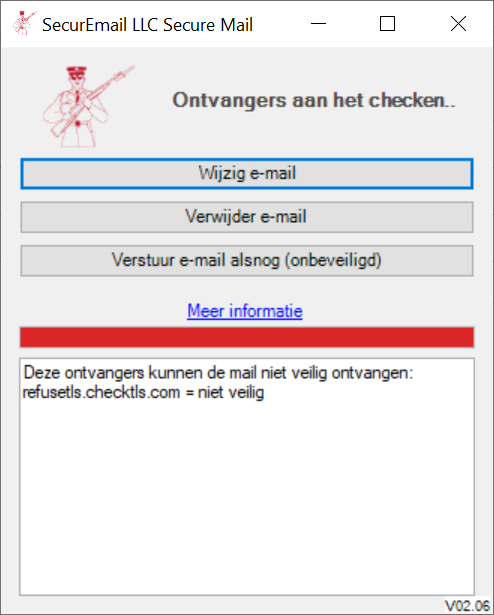
The optional field <T_LogoImageLocation> points to a logo file that replaces the EmailSentry logo in the top left of the popup window next to the title.
Originate From Your IP Address Space
Proxy
If your corporate network requires user's PCs to connect to the web through a proxy, EmailSentry can be configured to work through it as well, for example:
<PROXYURL>http://192.168.254.72:3128/</PROXYURL>
See WebProxy Class for how to format the proxy string.
Email configuration (see info on Configure Link above) can be done through a proxy by carefully including the PROXYURL in the Subject: of the email like this:
Subject:proxy:http://192.168.254.72:3128/ COMPANYPASS
It is important that there is only ONE space character in the entire subject string and that is between the proxy string and the COMPANYPASS.
Socks
EmailSentry tests domains by connecting to them and probing their security. These tests are usually launched from the CheckTLS.com servers. You can find the IP addresses of the CheckTLS.com servers by doing a DNS search on "whitelist.checktls.com".
Very security conscious companies or companies that have very robust Internet mail connectivity and reputation can specify a different IP address space from which to originate these tests.
Use the config file option <a_SOCKS> to specify a SOCKS proxy server which EmailSentry can route connections to Internet port 25 (SMTP).
The format is "user:pass@host:port", for example:
<a_SOCKS>socks-proxy-server.checktls.com:1080</a_SOCKS>