
EmailSentry™ Design
How It Works
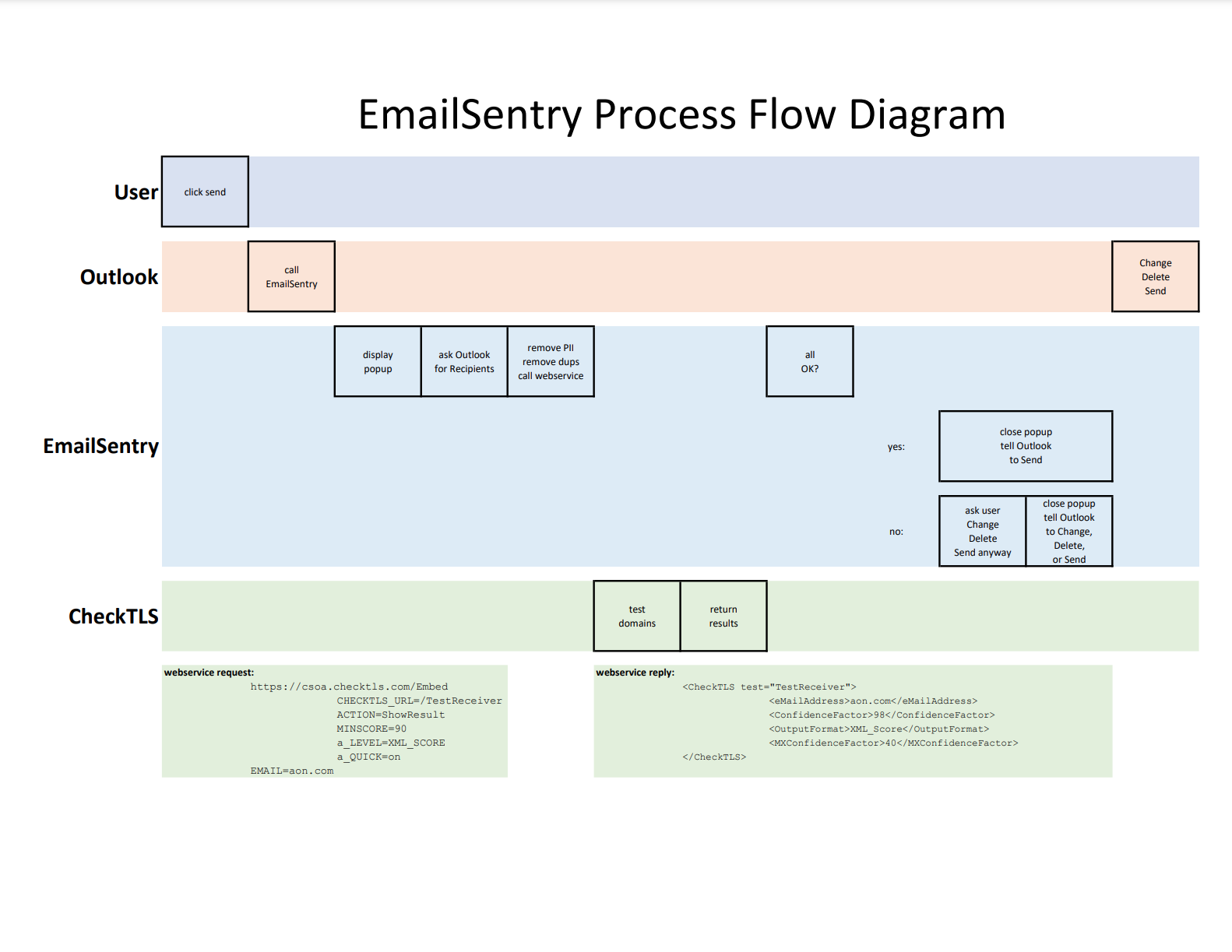
When you click the Send button in Outlook, EmailSentry automatically pops-up. It finds all of the unique domains in your list of TO:, CC:, and BCC: addresses and then uses a CheckTLS.com webservice to test each of them for TLS.
(click to enlarge)
If A Domain Fails
If any domain fails, meaning the email would be sent plain text, it stops and asks you if you want to send the message anyway, go back and change it (to remove the offending addressee or remove any confidential information), or cancel (delete) the message. Click the video below to see it in action.
If All Domains Are OK
If all the domains are OK, the pop-up disappears and Outlook sends the message. Click the video below to see it in action.
If Some Domains Are OK and Some Are Not
EmailSentry displays just the insecure domains so you can decide what to do. Click the video below to see it in action.
While EmailSentry is checking domains and the pop-up is visible, you can interrupt it and send the email, change it, or delete it. This is useful if an email has many addressees and you know after just a few domains that the email is OK or that you need to change it.
White-List Domains
To speed the test up even more, EmailSentry lets you list domains that the test can skip, either because you know, like your own domains, that they are secure, or you don’t care if emails to them are encrypted.
Customizable
You can host a config file that lets you tune EmailSentry. It allows you to set the allowed versions of TLS, cipher suites, certificates, timeouts, and link to a web page you host with usage and support instructions for your users.
The full power of the CheckTLS ("TestReceiver") test suite is available for you to define what a "Good" and a "Bad" address is.
Outlook Classic and Outlook
There are two versions of EmailSentry, EmailSentry V02 for Classic Outlook for Windows ("Outlook Classic") and EmailSentry V03 for New Outlook for Windows ("Outlook"). What Microsoft now calls just "Outlook" is not only for Windows, but also works with MAC, browser, and mobile devices.
Speed vs Security
By default, EmailSentry uses the CheckTLS QUICK option to test just the first MX host, which is the same one your mailer will use. The QUICK option only takes a few seconds, as opposed to the full CheckTLS Test Receiver that looks at all the MX hosts. A configuration parameter lets you use the full test if security is worth a few more seconds to you.
What If Something Goes Wrong?
EmailSentry is designed to get out of the way if anything goes wrong. If it fails to start or initialize correctly, Microsoft automatically disables it. If it gets a severe error, it disconnects itself from Outlook. If it gets a temporary error, or the CheckTLS servers fail or unreachable, it disables itself for 3 hours (configurable in the ConfigFile). It has a problem with one email, it will display a warning and allow the email to send. At any time the IT department can change EmailSentry's config file (hosted on a website) and temporarily disable EmailSentry.